
Here, we‘ll explore the correct way to send a full copy of your entire session to someone else, or to a different drive as a backup. To begin make what’s called a Save Copy In… This will create a new instance of your session folder with curated file content of your choosing.
How To
- Go to: File > Save Copy In…
- Check that the Sample Rate and Bit Depth are correct
- Check on Audio Files in Items To Copy
- Click OK
- Save and name it properly
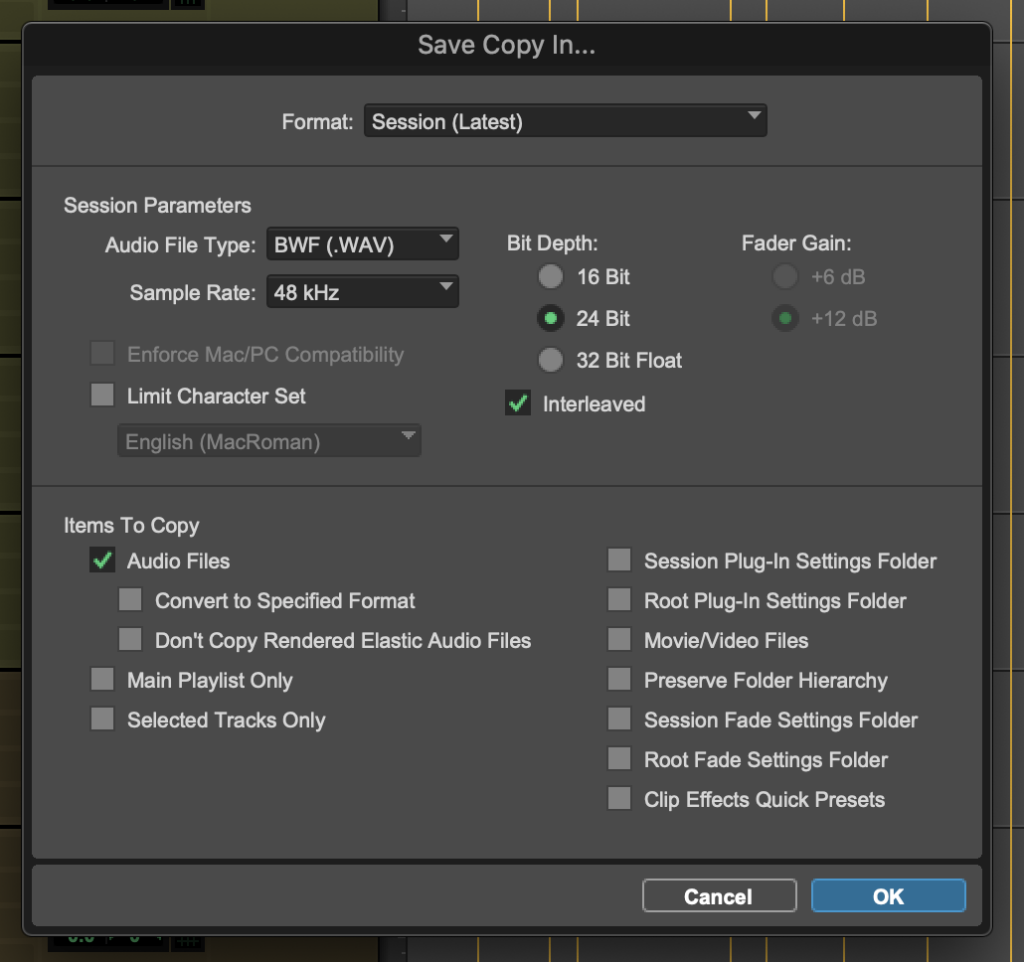
Please send the video file separately, instead of copying it here. Video files are usually rather large, and this way you avert sending unnecessary duplicates or larger files, that the recipient doesn’t need or already has.
Sending across operating systems
If you are sending your session from (Mac -> Windows), you will need to check on the Limit Character Set option and select English (Windows ANSI). This will remove special characters that might cause you trouble down the line.
Decreasing file size
If you are sending to backup and don’t need extra clutter or if storage space is a problem, there are ways to remove unused files from your project before making a Save Copy In…
Be aware! This will remove anything that’s not currently in your timeline.
- Save your project.
- Go to clips list
- Select unused
- Clear selected
- Click Remove